 |
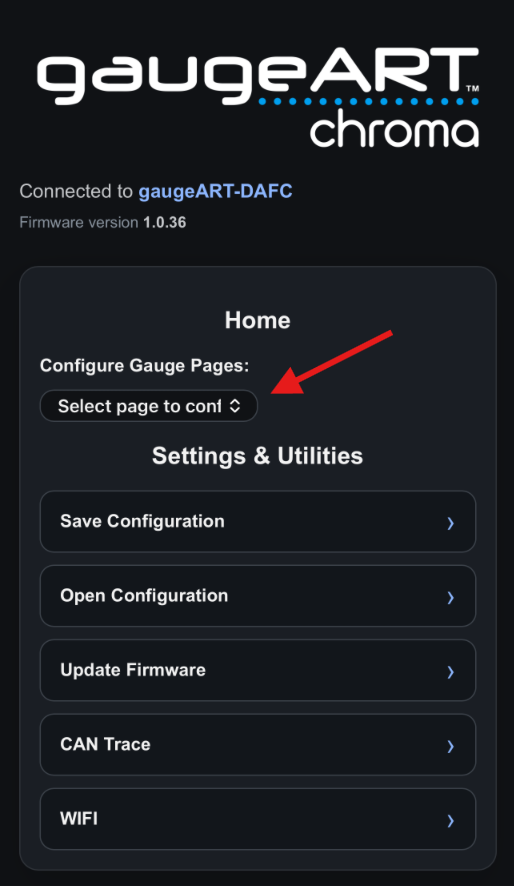
Edit page: the gauge supports 1–10 gauge pages, of various layouts (horizontal gauges, vertical gauges, round gauges, etc.) To edit a gauge page, click the drop down as shown and you will be able to edit any of the existing pages. Other homepage options: |
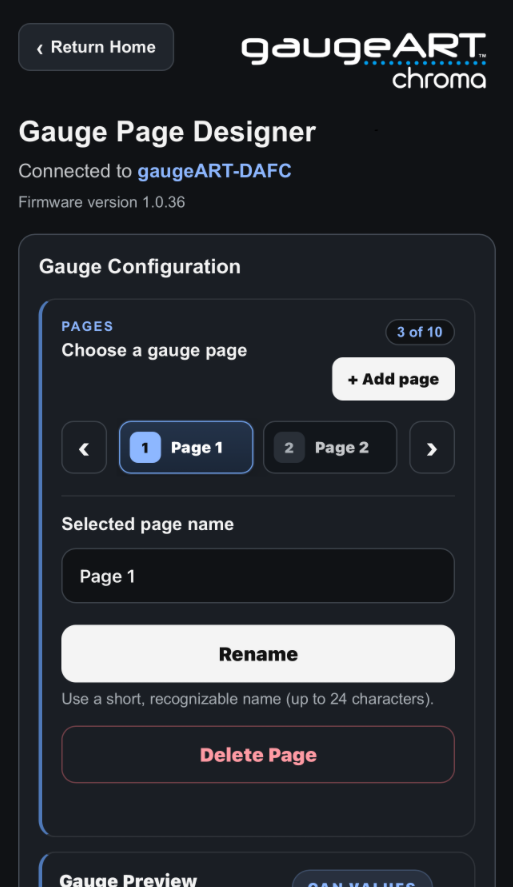 |
Rename, add, or delete a page: on the next page, the page name may be edited, a new page added, or the page may be deleted. |
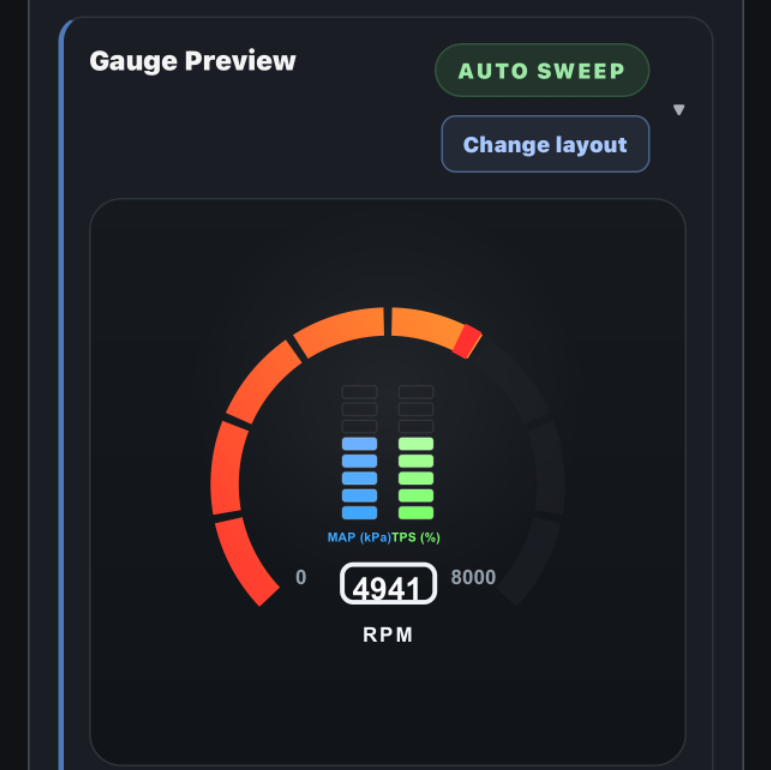 |
Gauge Preview: by scrolling down, a preview of the gauge layout can be seen. Autosweep or live CAN: select between autosweep (all gauges will sweep between minimum and maximum values both on the gauge and in the web app) or change autosweep to live CAN to see live data from the ECU displayed on both the gauge and web app. Change Layout: Click Change Layout to modify the layout of the gauges on the page you are editing. |
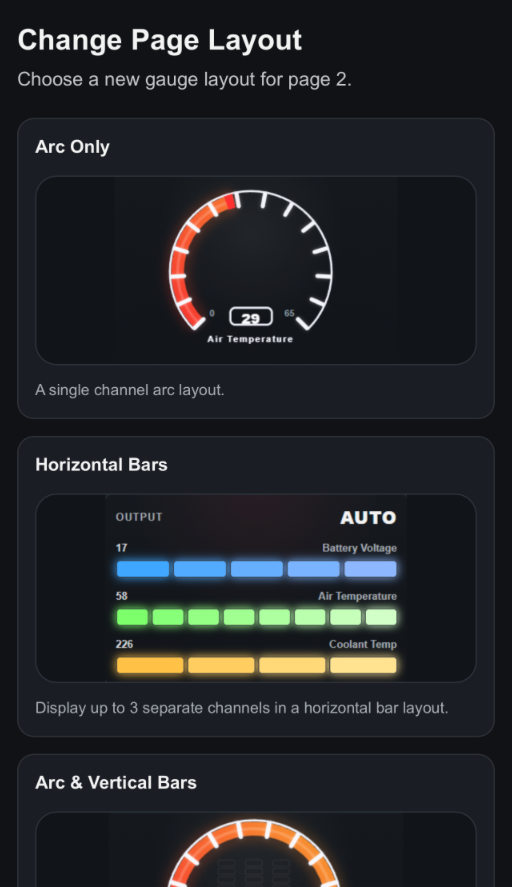 |
Tap any of the layout options to change the layout or scroll to the bottom of the screen to cancel changing the layout. |
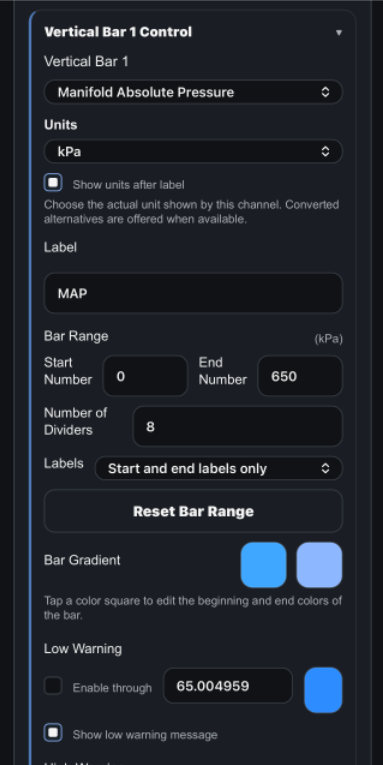 |
Editing gauges: each page consists of one or more gauges. Each gauge’s options are specific to the page and can be viewed and edited by scrolling down and expanding the gauge element. Each element’s control can be edited. Options include:
|
 |
Bar Gradient: the two colors represent the color at the beginning and end of the gauge. You may use two different colors to create a visual difference between low and high points of the gauge, or use the same color for bothLow & High Warning: Check the box next to “shown warning color” to have the gauge change to the color selected when a low or high warning point is exceeded. Check the box next to “Show low / high warning on gauge” to display a warning message when the pre-set low or high warning point is exceeded. |
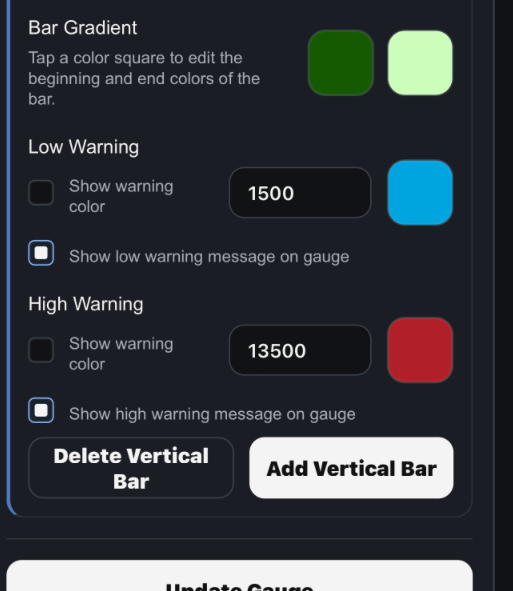
Bar Gradient: the two colors represent the color at the beginning and end of the gauge. You may use two different colors to create a visual difference between low and high points of the gauge, or use the same color for both.
Low & High Warning: Check the box next to “shown warning color” to have the gauge change to the color selected when a low or high warning point is exceeded.
Check the box next to “Show low / high warning on gauge” to display a warning message when the pre-set low or high warning point is exceeded.